When I first started working with vCAC, I was intrigued to know the difference between a Drop Down and a Drop Down List, and how to set them up. So here you go.
In this example I’ll show you how to set up a list where a user can select the Operating System type for a ‘Bare Metal’ Catalog Item (published Blueprint). You might create a ‘Bare Metal’ Catalog Item when you want your Business Group users to execute a Day Two action to connect an ISO to the virtual machine and install the OS manually.
Drop Down List
So let’s look at a Drop Down List. First off you need to create a new custom property definition in the vCAC Property Dictionary, as in the screen shot below:
- Name: For this Property Definition should be VMware.VirtualCenter.OperatingSystem
- Display Name: What the user will see in the Catalog Item request form
- Control Type: Should be set to DropDownList
- Required: Set to Yes to make this a mandatory property
Next Click Edit, to edit the Property Attributes:

- Type: Should be ValueList
- Name: A descriptive name (not visible to the user)
- Value: This is your comma separated OS list (names can be found in the property set list in the Build Profile tab)
Now you need to associate the custom property with your ‘Bare Metal’ Blueprint. If you have multiple Blueprints to associate with, then the most efficient way to do this is use a Bulid Profile, as below:

- Prompt User: Make sure this is set to Yes, making it visible on the Catalog Item
Now lets look at how the Drop Down List looks on the New Request Form:
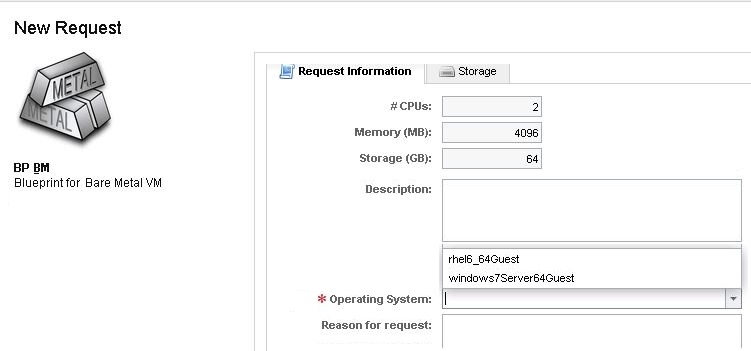
As you can see, the Operating System property is mandatory, as indicated by the asterisk, and the user must select from the list of the two OS types, with no default value.
Drop Down
So next, let me show you how to do the same thing, but using a Drop Down. The custom property definition is configured in the same way, the only difference is the Control Type is now DropDown as below:

Let’s look at the difference this has made to the New Request Form:
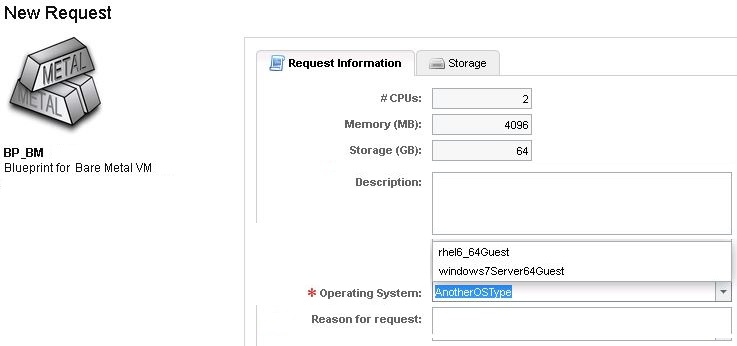
Now the user can select from the Drop Down, or alternatively free text can be entered in the Operating System field. You probably would not want to use a Drop Down for Operating System, as it allows the user to enter their own OS type that vCAC does not understand. If the user went ahead and requested the virtual machine as in the screen shot above, the request would fail with the following information:
Status Details: Request Failed: Machine xxxxxx: CreateVM : Requested value ‘AnotherOSType’ was not found.
 VIRTUAL GREG